Join the group
Open Google Groups and use “Ask to join group.” Sign in with the account on your Android phone.
PRIVATE BETA ACCESS
Join the Google Group to request beta access, then return to Google Play and install the latest Sky Cover build.
Use the same Google account for both steps.Open Google Groups and use “Ask to join group.” Sign in with the account on your Android phone.
Your invitation may require manual approval. Group updates will confirm when your membership is active.
Open the Play Store testing link, accept the invitation, then choose Install.
WHY THE ERROR PAGE APPEARS
Google Play and Google Groups use separate access checks. Joining one does not automatically activate the other, and Play must recognise the exact Google account signed in on the Android device.
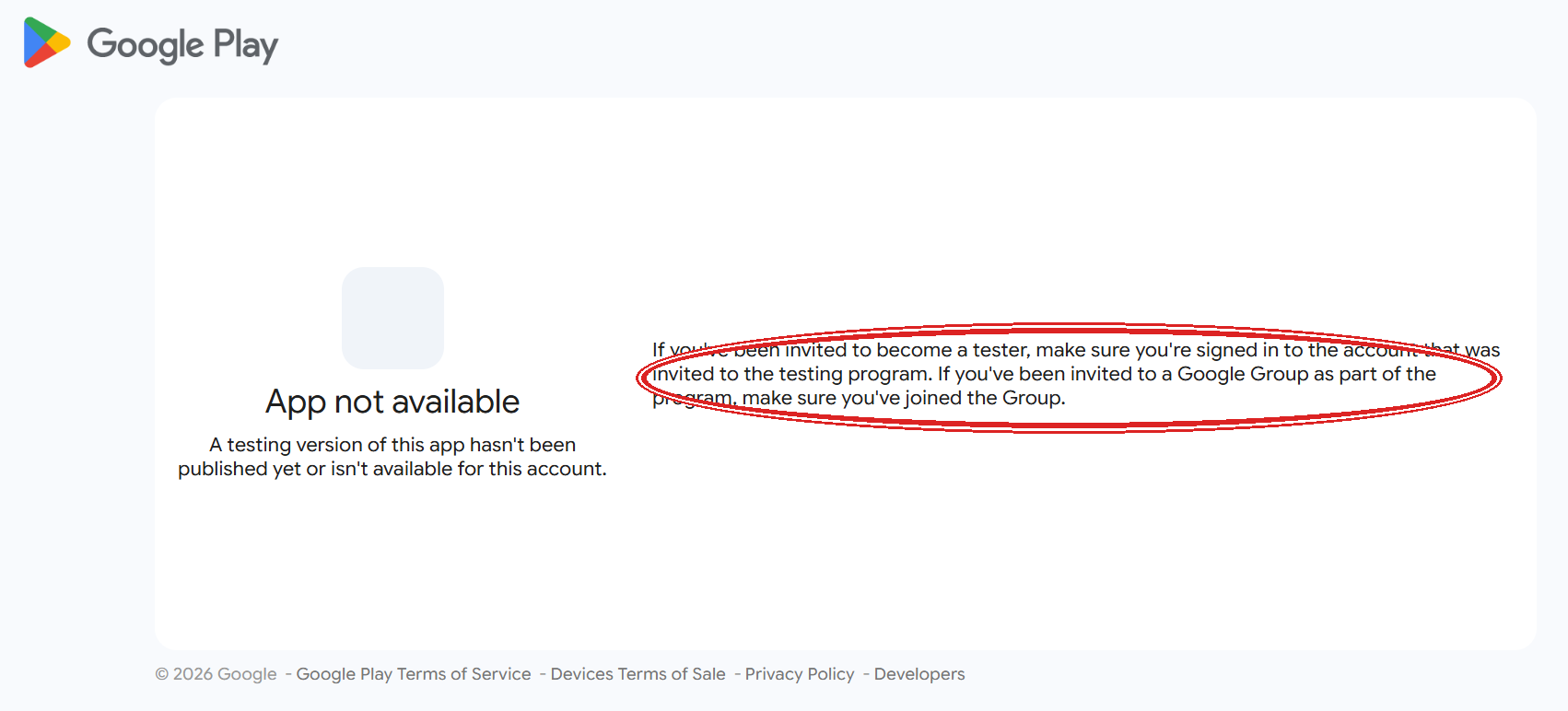
This usually appears before the tester has joined the Google Group or accepted the Play testing invitation. Press the Play Store testing link again only after the group membership is approved, and confirm that Play Store shows the same Google account named in the invitation.
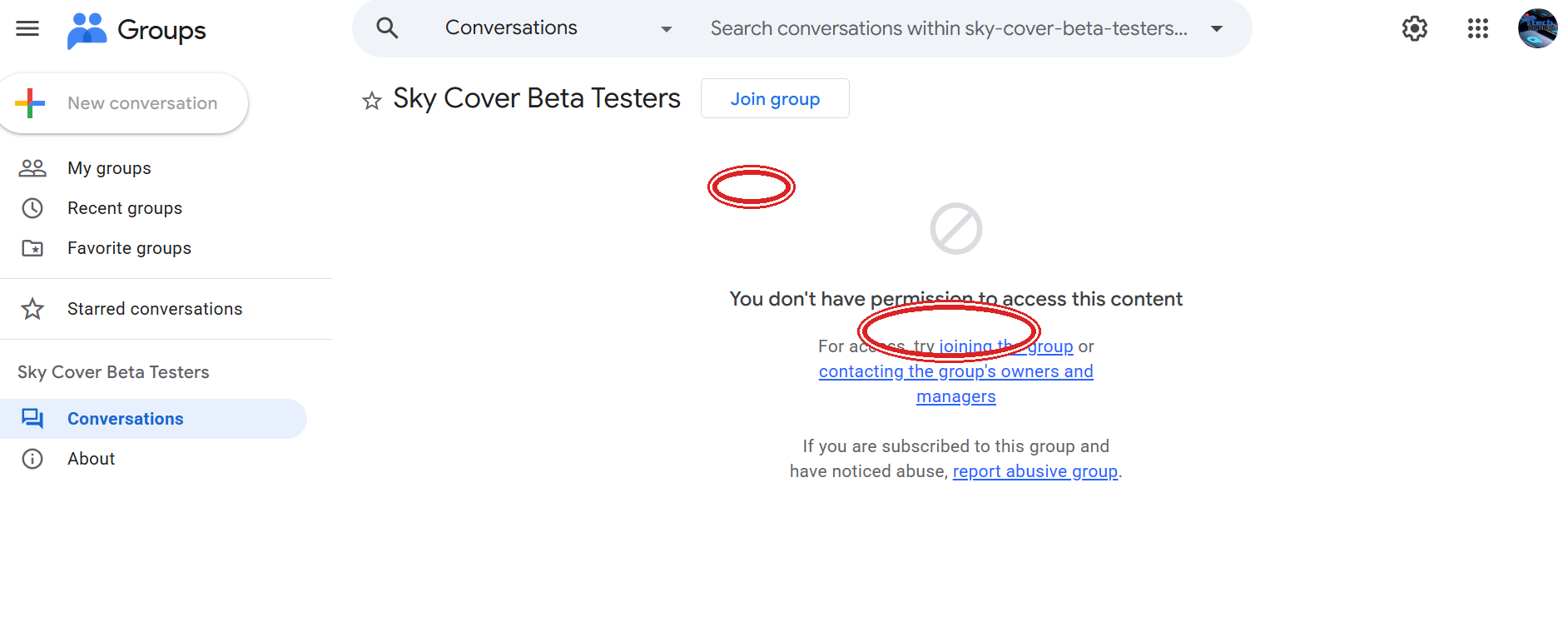
In the Google Group header, press the outlined Join group button. If approval is restricted, you may instead see Ask to join group; submit that request and wait for approval.
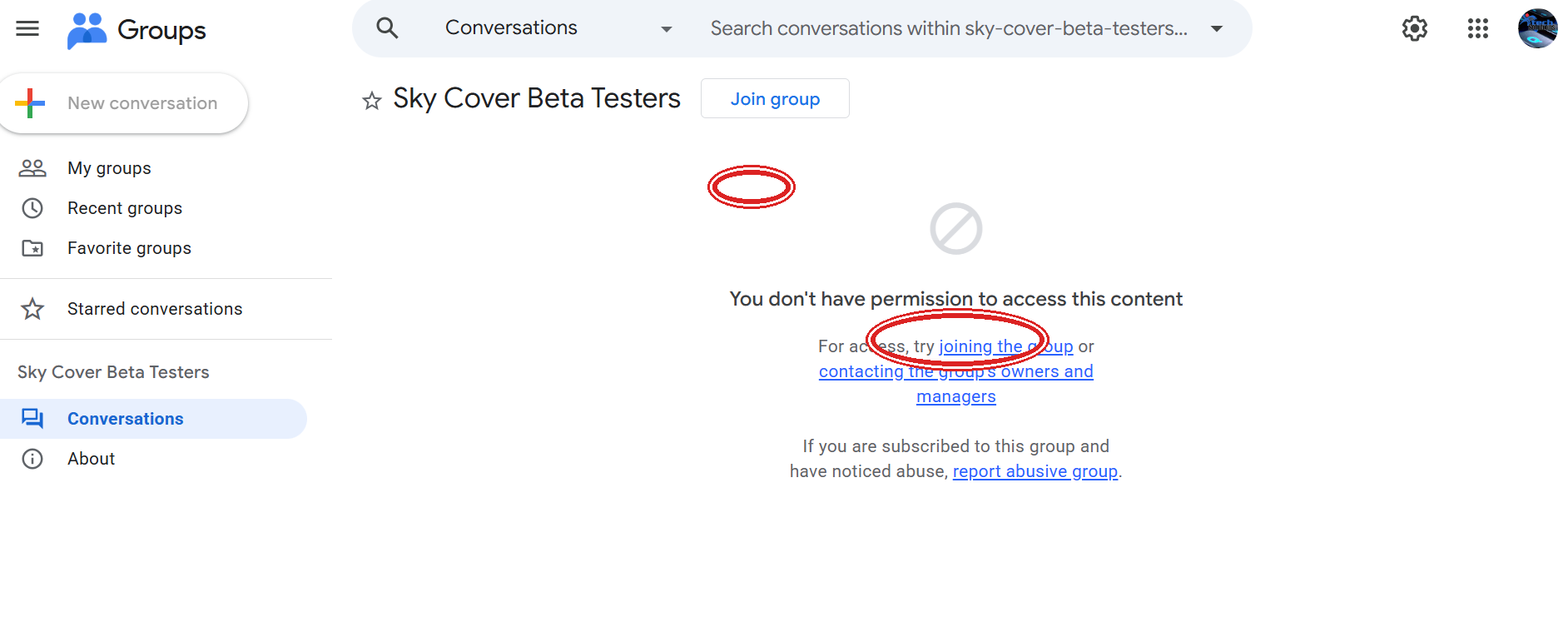
The permission page means you are trying to view a member-only area before access is granted. Press “joining the group” rather than trying to open conversations directly. Reload the Play link after approval.